Showing posts with label AX 2012. Show all posts

Monday, 4 November 2019

AX 2012 Invalid data container type

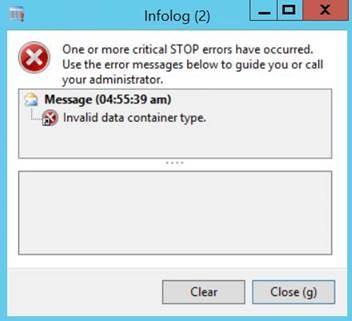
Error: Invalid data container type 
While creating service from AIF document service wizard error below


cid:image001.jpg@01D5857F.FB9C6850


Solution:

  1. Compile forward AfStronglyTypedDataContainer class ( this will take approx.. 15 to 20 minutes)
  2. Full CIL 

Tuesday, 24 April 2018

Automatic workflow approval Microsoft Dynamics AX 2012


Image result for workflow approval
There are different scenarios for workflow approval. once the workflow is created in Microsoft Dynamics AX.
In this post I will show simple steps for automatic workflow approval.
  • Go to existing workflow. In my case it is review original budget for project
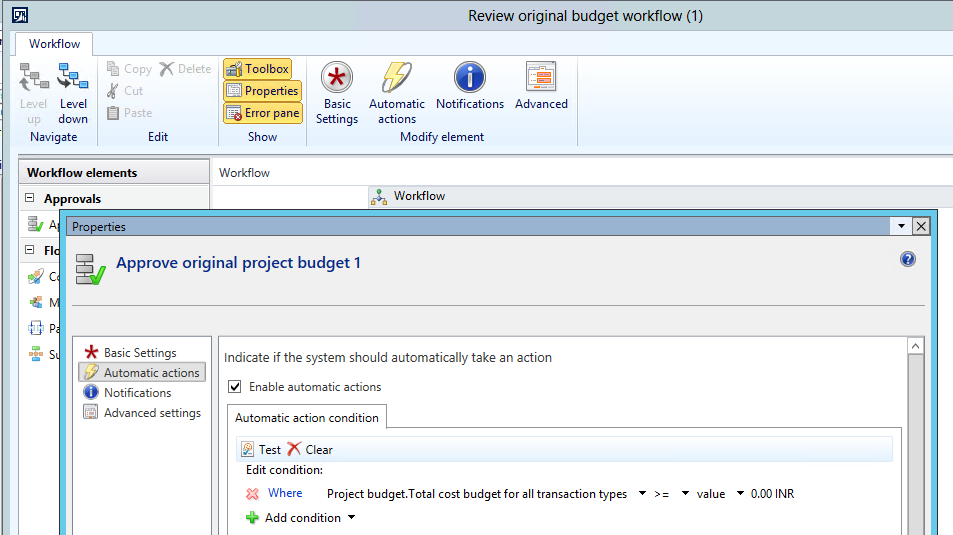
  • Click on “Approve original project budget”. It will show screen as below
  • Now on Action pane on the top click on Automatic actions
  • Tick on enable automatic actions
  • Click on Add condition and create condition as show below:


  • Now in Auto complete action select “Approve”


Friday, 18 March 2016

How to change form color by company in Microsoft Dynamics AX 2012

How to change color based on the company in Microsoft Dynamics AX 2012


I came across the client’s new requirement in Microsoft dynamics ax 2012 that, they want to identify in which company they are currently working by the color. On the base of color they define the company.

The issue is users are working on the same form with multiple legal entity at a time. This causes them the issue of data capturing. By mistake entering in wrong legal entity. On the base of color they can easily identify the company.
Here is the list of steps which we follow
  • Create Extended datatype
  • Create Table “CompanyColor”
  • Add Table to OMLegalEntity form
  • Create methods on the form
  • Edit class SysSetupFormRun
  • Set company wise color
  • Result


Extended datatype
  1. CompanyformColor
  2. CompanyID


Create Table “CompanyColor”
Fields
  1. CompanyformColor – Real, attach extended data type “CompanyFormColor”
  2. CompanyId – String, attach extended data type “CompanyID”


Add Table to OMLegalEntity form
Open data source and create new data source and add Table Created above “CompanyColor”
Open Design and Create new Tab under “General Tab” and drag CompanyformColor field from the CompanyColor table
Add lookup Method on CompanyformColor field
public void lookup()
{


   int red;
   int green;
   int blue;
   container color;


   [red, green, blue] = WinApi::RGBint2Con(
                   CompanyColor_CompanyFormColor.backgroundColor());
                   color = WinAPI::chooseColor(
                   element.hWnd(),
                   red,
                   green,
                   blue,
                   null,
                   true);


   if (color)
   {
   [red, green, blue] = color;
   CompanyColor1.CompanyFormColor = WinAPI::RGB2int(red,green,blue);
   CompanyColor_CompanyFormColor.backgroundColor(real2int(CompanyColor1.CompanyFormColor));
   }
}


Add modified Method on CompanyformColor field


public boolean modified()
{
   boolean ret;


   ret = super();


   //if no company color exists, delete the CompanyColor record
   if (!CompanyColor1.CompanyFormColor)
   {
       CompanyColor1.delete();
   }


   return ret;
}


Edit class SysSetupFormRun
public void run()
{
   FormTabControl   tab;
   //ChangeTabPageColors changeTabPageColors;
   int companyColor;
   ;


   super();


   // Switch and based on the current company change colors, or not for default
   if (CompanyColor::find(curext()).CompanyFormColor)
   {
       // Set the color scheme of this instance of the SysFormRun to RGB
       companyColor = real2int(CompanyColor::find(curext()).CompanyFormColor);
        
// code here to apply color to control       

       
   }
}


Set Color for the legal entity
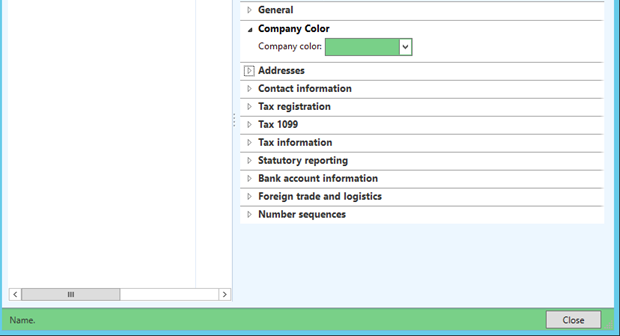
Go to > Organization administration > setup > legal entities. Select the legal entity and select color


Restart the AX client, here is the result


This helped you..!! Then hit the ads on the page..:)

Tuesday, 2 February 2016

CIL generation: Value cannot be null. Parameter name: parameterTypes


CIL generation: Value cannot be null.  Parameter name: parameterTypes

Dynamics AX 2012

1) Compile application and see that there is no error. If any resolve first.
            Compile Application using axbuild

2) Stop AOS

3) Delete all from the source:

C:\Program Files\Microsoft DynamicsAX\60\Server\MicrosoftDynamicsAX\bin\XppIL directory

4) Start the AOS.

5) Perform a Full CIL.


6) Perform a Incremental CIL


This helped you..!! Then hit the ads on the page..:)

Tuesday, 19 January 2016

Get current user name x++ AX 2012

when it is require to show current user name related with worker try below code in AX 2012.

static void getUserName(Args _args)
{
    info(strFmt('%1',curUserId()));
    
    info(strFmt('%1',HcmWorker::userId2Worker(curUserId())));
    
    info(HcmWorker::find(HcmWorker::userId2Worker(curUserId())).name());
}


This helped you..!! Then comment below..:)

Create Custom lookup x++ ax 2012

Create lookup on x++  AX 2012

Many time there is client's requirement of lookup to have specific fields from the table in Dynamics AX 2012.

try code below to create custom lookup.

Right click on the field and create lookup method and write the code as below.

public void lookup()
{
    Query                   qr = new Query();
    QueryBuildDataSource    qbds;
    QueryBuildDataSource    qbdsJoin;
    QueryBuildRange qbr,qbr1;

    QueryRun                qrun;
    SysTableLookup          sysTableLookup = sysTableLookup::newParameters( tableNum(ProjTable), this);
    ;
    qbds= qr.addDataSource( tableNum(ProjTable));
    qbds.joinMode(JoinMode::InnerJoin);
    qbds.relations(true);    
    
    sysTableLookup.addLookupfield( fieldNum(ProjTable, ProjId));
    sysTableLookup.addLookupfield( fieldNum(ProjTable, Name));      
    sysTableLookup.parmQuery(qr);
    sysTableLookup.performFormLookup();

}


This helped you..!! Then comment below..:)

Saturday, 2 January 2016

UTC date time to String X++ AX 2012

UTC date time to string x++ AX 2012


    utcDateTime utc;
    str         strdate;
      
    utc = DateTimeUtil::newDateTime(mkDate(15,12,2012),0);
   
    info(strFmt('UTC date: %1',utc));
    strdate = DateTimeUtil::toStr(utc);
   
    info(strFmt('String: %1',strdate));

Friday, 1 January 2016

Data update batch job in waiting status Microsoft Dynamics AX 2012

Data update batch job in waiting status AX 2012


While AX 2012 upgrade steps in Data upgrade checklist AX 2012. it is required to follow checklist steps without skipping.

In Pre-Synchronization step, Many times it happens that Dataupdate batch jobs is scheduled to run. But it goes in waiting mode for long time. For that verify below setups

·         System service accounts
o   enter admin user in the business connect
·         Server configuration
o   Select ISBATCH for the current AOS server
o   Verify that the Batch groups to process are in selected group under Batch server groups tab
·         Batch group
o   Check that dataupdate group is available
o   Batch server tab, assign the current active batch server is in selected group

Now if everything looks perfect then also batch not showing executing,
Two options to follow

1)      Update batch server id from SQL
2)      Delete all batch job and recreate

1)      Update batch server id from SQL
               
                It’s time to go backend (SQL)

Go to SQL server management studio and create new query selecting AX database.

Select * from Batch

Select * from BatchJob

If you find any rows showing old ServerID then update it

update batch set SERVERID = '<01@NewAOS>' where serverid = '<02@OldAOS>'

Wait for few minutes and check that any batch showing in executing or ended.

2)      Delete all batch job and recreate

If still not running the any batch on option 1. Just delete all batch jobs. Take backup before deleting.

Run the Pre-Synchronize form again from checklist. Load scripts and click on RUN.

Open batch job form and review the batch running or not


This helped you..!! Then comment below..:)


Thursday, 24 December 2015

AX 2012 Compile Application using axbuild command

Compile Application using command prompt

The new way to compile AX application through command prompt is introduced in AX 2012 CU7. This is much faster than the traditional way of compiling. It takes approx.. 1-2 hours to compile depends on your server

  1. Run command prompt by Run As Administrator
  2. go to  C:\Program Files\Microsoft Dynamics AX\60\Server\MicrosoftDynamicsAX\bin\
  3. Use command to run compilation. axbuild.exe  xppcompileall /s=01 /altbin="C:\Program Files (x86)\Microsoft Dynamics AX\60\Client\Bin"


There are other options for running axbuild command refer msdn

Wednesday, 16 December 2015

Use table method in Lookup x++ AX 2012

Create lookup using table method on Dynamics AX 2012


Many time it is require to show field on lookup x++ in Dynamics AX 2012 which is not directly on the table or table field. In that case table method will be useful in lookup to show relative data. Only problem is it won’t be filtered. 

Here is the code to get data from table method in lookup.

public void lookup()
{
    Query                   qr = new Query();
    QueryBuildDataSource    qbds;
    QueryBuildDataSource    qbdsJoin;
    QueryBuildRange qbr,qbr1;

    QueryRun                qrun;
    SysTableLookup          sysTableLookup = sysTableLookup::newParameters( tableNum(ProjTable), this);
    ;
    qbds= qr.addDataSource( tableNum(ProjTable));
    qbds.joinMode(JoinMode::InnerJoin);
    qbds.relations(true);    
    
    sysTableLookup.addLookupfield( fieldNum(ProjTable, ProjId));
    sysTableLookup.addLookupfield( fieldNum(ProjTable, Name));   
    sysTableLookup.addLookupMethod(tableMethodStr(ProjTable,YourMethod));    
    sysTableLookup.parmQuery(qr);
    sysTableLookup.performFormLookup();

}

Method on ProjTable
public display str 20 YourMethod()


{
 // code 
}


This helped you..!! Then hit the ads on the page..:)