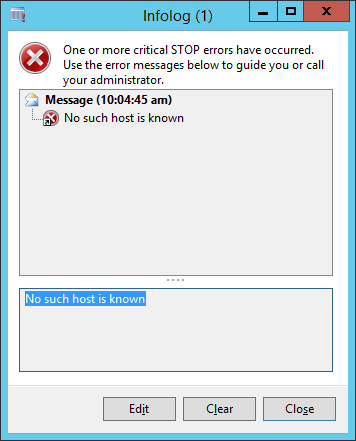
The Accounts Payable cube cube either does not exist or has not been processed.
Solution:
This error is raised when I run the report top vendors by YTD purchase.
The issue can be the cubes are not properly processed. Verify the cubes or reprocess the cubes from SQL.
The issue here is while deploying and processing the cubes from the Dynamics AX 2012
(Tools > Business Intelligence tools > SQL server analysis Project wizard)
Cubes are not processing completely and generating error
“MdxScript(Sales cube) (21, 18) The '[Commission line amount - accounting currency]' member was not found in the cube when the string, [Measures].[Commission line amount - accounting currency], was parsed.
Errors occurred while processing the Analysis Services database: Dynamics AX initial”
and stop further process.
In my case, we have upgraded from AX 2012 to AX 2012 R3. So cubes are not processing due some issue may be due customizations.
Take Backup of the objects before applying any steps.
Delete the customization in “Dynamics AX” project or “Dynamics AX” Analysis project, which will restore it to sys layer. (AOT > Visual studio projects > Analysis service projects) and try to redeploy from tools mention above.
This require the MS SQL Analysis service installed and configured.
This steps resolve my issue. ☺