Friday, 3 August 2018

Dynamics 365 for Talent: leave and absence

Leave and absence

Dynamics 365 for talent covers all the HR core functionality which are on Dynamics AX 2012 along with updated Leave and absence functionality. In this post we explore functionality of leave and absence on Dynamics 365 for talent.
Dynamics 365 for talent leave and absence has functionalities as:
  • Leave plans
  • Leave enrolment
  • Leave request and approval
  • Leave accrual and balances
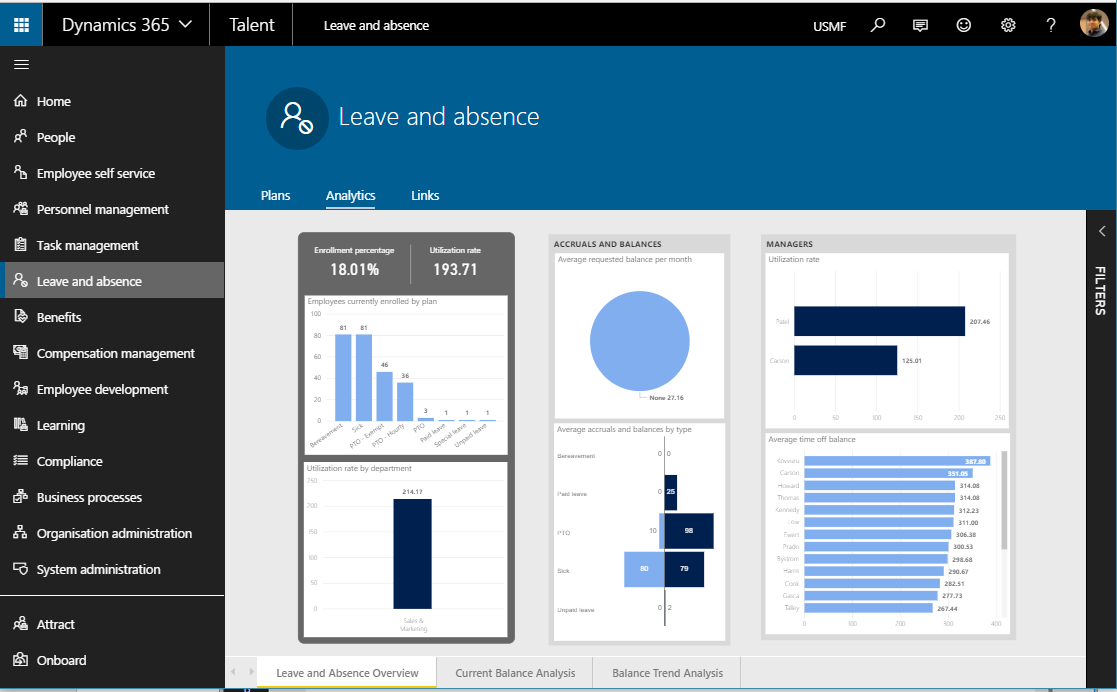
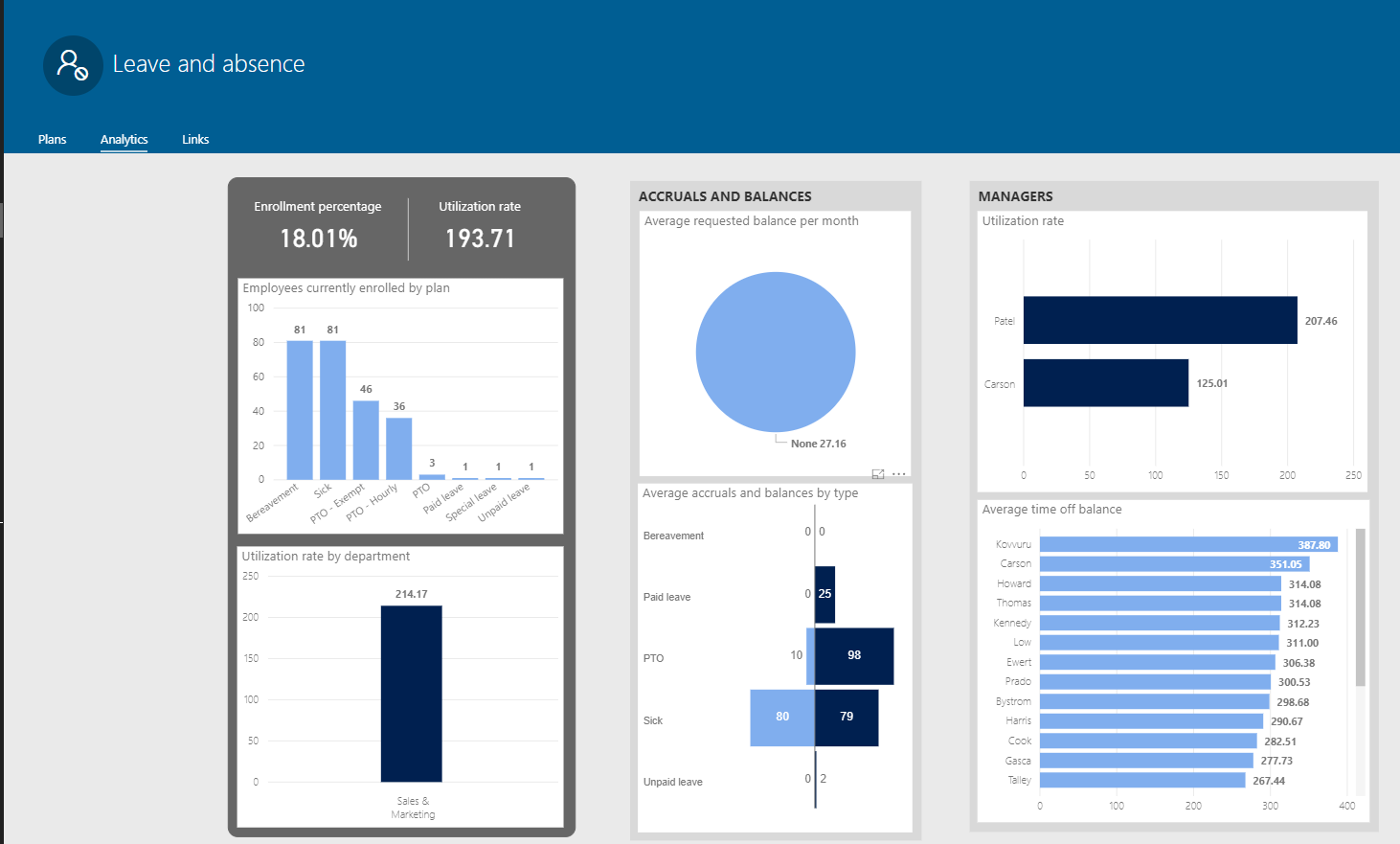
  • Leave and balances analytical graphs
Let’s go through each with screens on Dynamics 365 for Talent

Leave plans
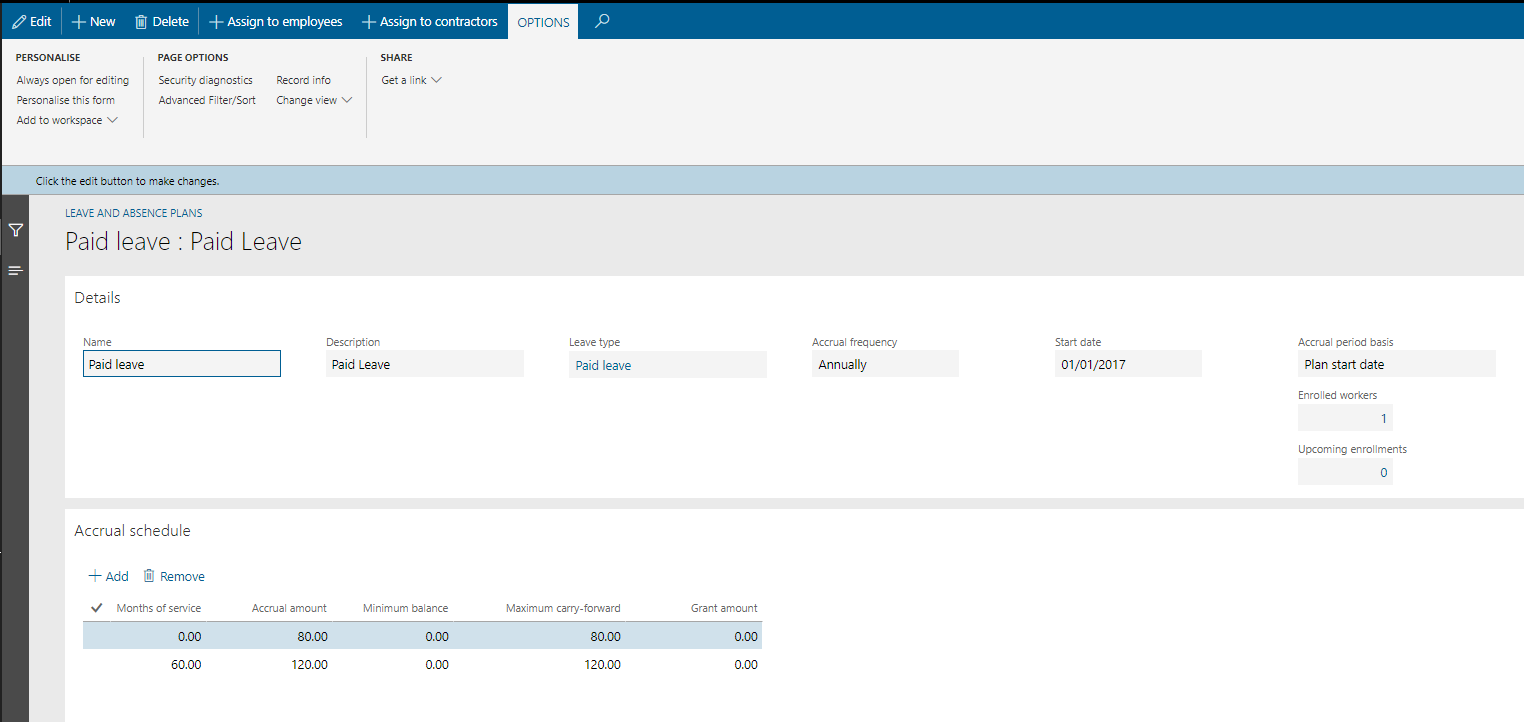
Leave plans has different type of leave for the employee such as paid time off, sick leave, parental leave. Leave plan has the details plan start date, accrual frequency (Annually, monthly) and accrual amount. leave plan has functionality to configure based on month of service completed by employee. So senior employees have more leave than newly joined. You can also set minimum leave balance and maximum carry forward for particular leave plan.
Leave amount can be configured by hours or days. only one can be enable at a time for a legal entity. Once the transactions for leave occurred it cannot be changed. Below is screen for details


Leave enrollment
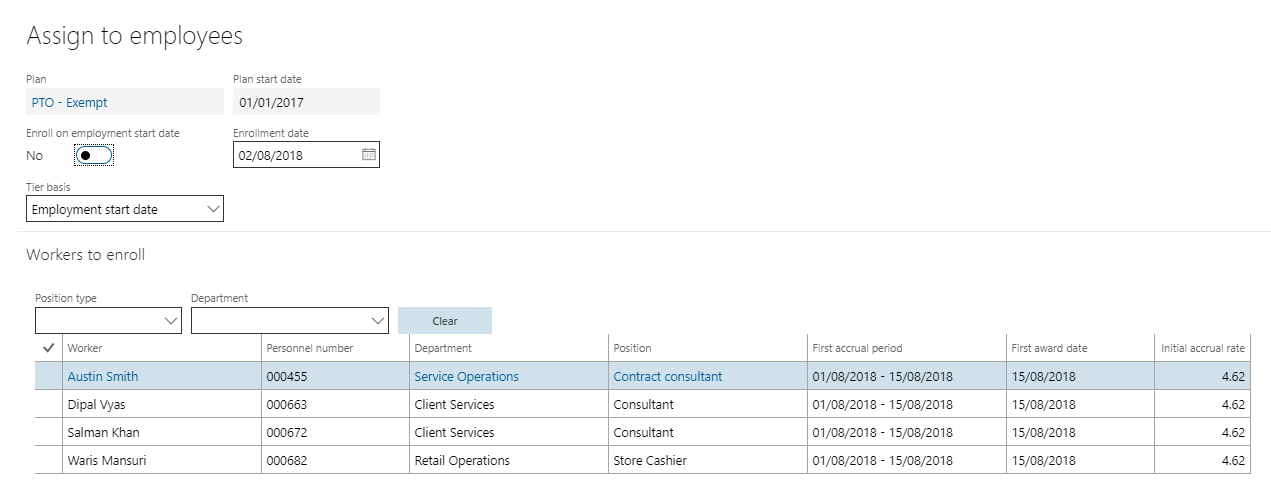
Employee or contractor can be enrolled directly from the leave plan. Leave plan can be assigned to employee for current period or upcoming period.
Leave request and approval
Leave request
Employee can request time off or leave his/her self directly from employee self-service. Employee able to select from leave plans assigned to them. Enter dates it can be multiple. Enter comment or reason for approval. Employee also able to see leave balance on the same screen. Leave amount shown in the screen is hours based and it has calculated 6.33 hours for a day based on calendar. See screen below
Leave approval
Leave approval is navigating through workflow. Workflow can be configured to approve leave by position hierarchy so immediate reporting person get request for approval. Also this can be configured to auto approve based on conditions like if leave type is sick leave.

Leave accrual and balances
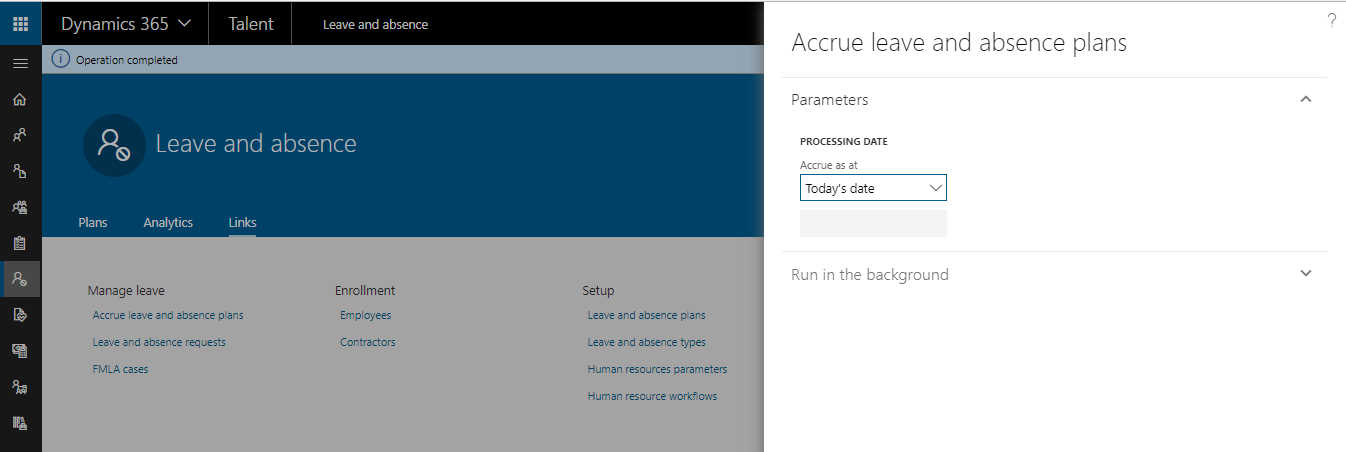
Leave accrual for all the plans can be done from single process. It will update leave balances of employee.
Employee leave balance


Leave and absence analytics
Dynamics 365 for Talent has out of box different analytics reports provided.

Note:

Dynamics 365 for Talent has no customization available right now.

Thursday, 21 June 2018

Timesheets Dynamics 365 finance and operations

Timesheets Project Management - Microsoft Dynamics 365 finance and operations


Talania | Chat that works | Chatbot Solutions


Timesheet is very useful functionality for project management Dynamics AX/ Dynamics 365 finance and operations. Each employee can enter their daily hours for project by relative category of work. Also can select the WBS activity for which task has been performed.
Timesheet can be created by the user itself and submitted for approval. Timesheet approval is mandatory using workflow. Different conditions can be applied in workflow for approval.
Once the timesheet is approved can be posted to project and cost will be shown under project transactions
Go through steps below for timesheet functionality
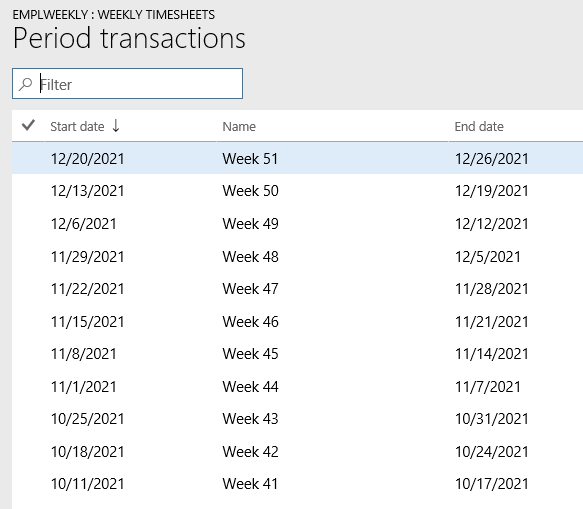
Generate period
  1. Go to > Project management and accounting> Setup > timesheet > Timesheet period types
    1. Timesheet periods can be for weekly, monthly, ledger period wise, etc..
  1. Select period type. Like Weekly. Specify the start date and length of period to generate and it will generate periods for that


Assign period to worker
To enable timesheet for employee it’s mandatory to assign period code to employee
  1. GO to > Human resource > worker
  2. Under project tab, click project setup and select period code


Update worker period
  1. Go to time sheet period types as above and click on update worker periods
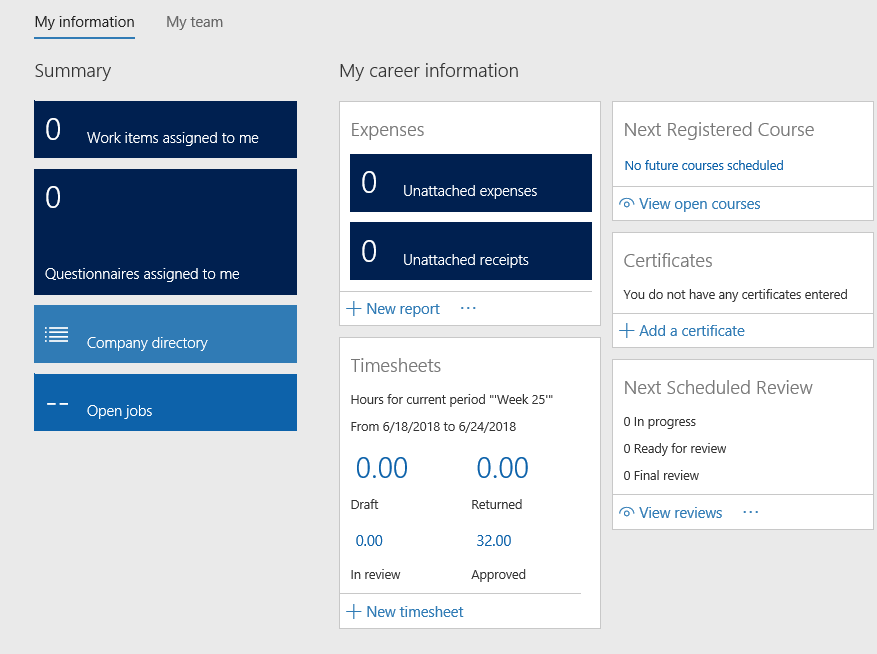
Create timesheet
  1. Go to > Employee self-service workspace
  1. Click on create new timesheet
    1. Select project and category for hours
    2. enter hours’ date wise
    3. submit for approval by clicking on workflow button
    4. once timesheet is approved click on post
Review posted hours
  1. Go to Project management and accounting > all project.
    1. Select project and go to manage tab
    2. Under related information group click on posted transactions. It will show all posted transactions along with timesheet transactions.